Kling 4.0으로 모션 트랜스퍼하는 법 💃
캐릭터 이미지 1장과 10초 영상 1개로, 무대와 안무는 그대로 두고 춤추는 사람만 내 캐릭터로 바꿉니다.
- 모델 · Kling 4.0
- 모드 · Omni reference
- 1080p · 10초 · 9:16
01재료 준비하기
모션 트랜스퍼에는 두 가지가 필요합니다. 인물의 얼굴과 스타일을 알려 줄 캐릭터 이미지, 그리고 동작과 배경을 알려 줄 원본 영상입니다.
| 캐릭터 이미지 (@Image1) | 정면·측면·뒷모습과 전신 컷이 함께 있는 캐릭터 시트 |
| 원본 영상 (@Video1) | 9:16 세로 영상 · 10초 · 짧은 변 700px 이상 · 동작이 잘 보이는 무대 직캠 |
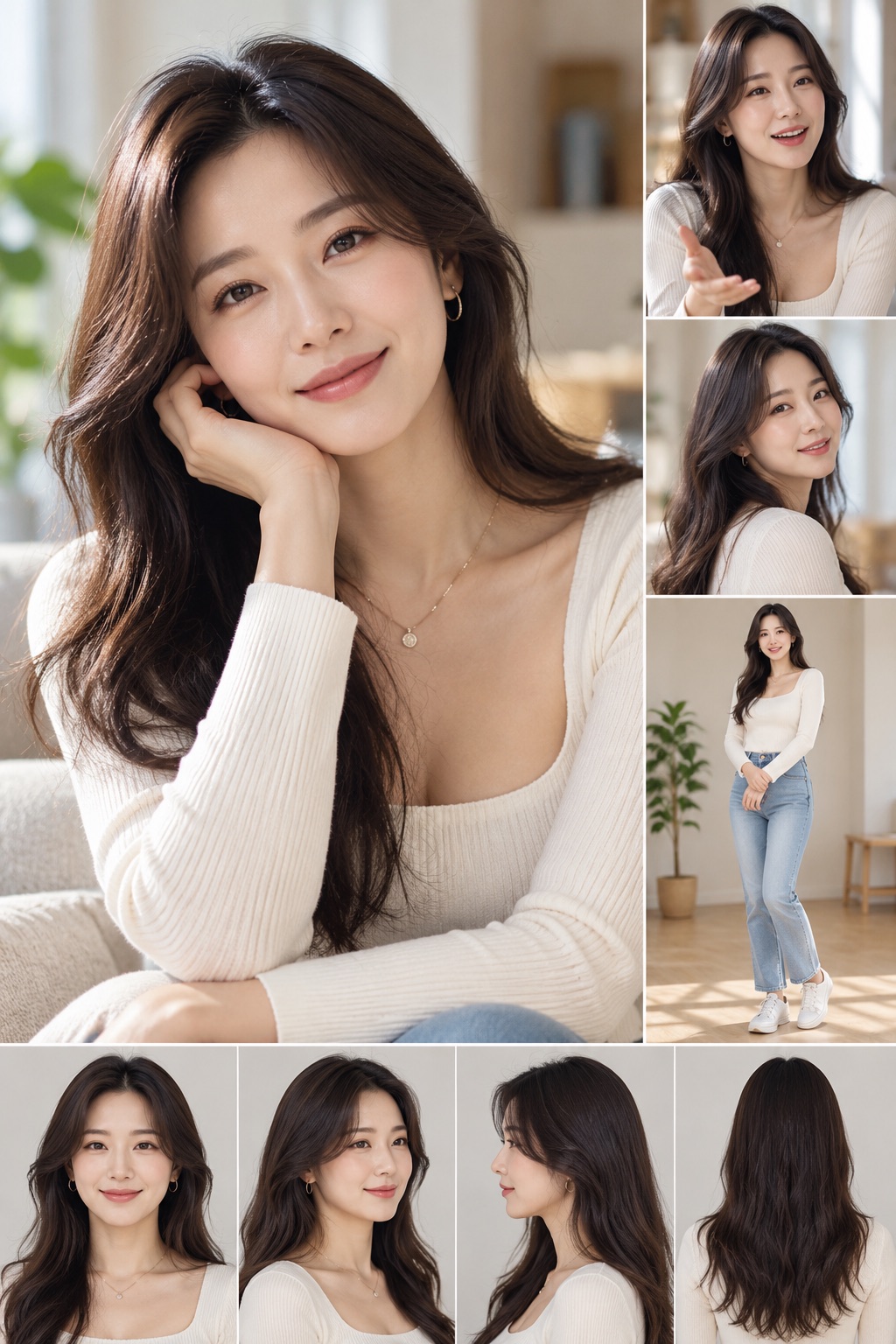
원본 영상은 결과물 길이와 똑같이 10초로 잘라서 넣으세요. 인물이 화면 안에서 크게, 가려지지 않고 보일수록 동작이 정확하게 옮겨집니다.
원본 영상은 짧은 변이 700px 이상이어야 합니다. 이보다 작으면 첨부할 때 “Resolution too low. The shortest side must be at least 700px.” 오류가 뜹니다. 세로 영상이라면 가로 폭이 700px 이상이어야 하니, 720×1280(720p) 이상으로 준비하세요.
02레퍼런스 영상·이미지 첨부하기
Kling 웹의 입력창에 원본 영상과 캐릭터 이미지를 레퍼런스로 첨부하고, 아래와 같이 설정합니다.

- 입력창 왼쪽 위의 + 버튼으로 원본 영상을 먼저 올립니다. Video1로 표시됩니다.
- 같은 방법으로 캐릭터 이미지를 올립니다. Image1로 표시됩니다.
- 아래 메뉴에서 Video Generation, Kling 4.0, Omni reference를 선택합니다.
- 해상도·길이·비율을 1080p · 10s · 9:16으로 맞춥니다.
| 생성 유형 | Video Generation |
| 모델 | Kling 4.0 |
| 레퍼런스 모드 | Omni reference |
| 해상도 · 길이 · 비율 | 1080p · 10초 · 9:16 |
| 생성 개수 | 1 |
영상을 먼저 올리면 Video1, 이미지를 올리면 Image1로 이름이 붙습니다. 이 이름을 다음 단계의 프롬프트에서 그대로 사용합니다.
03프롬프트 입력하기
프롬프트에서 @Image1과 @Video1로 각 레퍼런스의 역할을 정해 줍니다. 이미지는 누구로 바꿀지, 영상은 어떤 동작과 배경을 쓸지 알려 줍니다.
Use @Image1 as the strict character reference and @Video1 as the 10-second motion and environment reference.

Replace only the female performer in @Video1 with the woman from @Image1. Preserve her exact facial identity, facial proportions, long dark brown wavy hair, natural skin tone, and realistic appearance. Maintain her white ribbed long-sleeve sweater, delicate necklace, small hoop earrings, and consistent clothing throughout.

Preserve the original stage environment from @Video1 exactly. Keep the same stage layout, LED screens, background graphics, Korean text, stage decorations, floor, lighting fixtures, colors, reflections, and overall atmosphere. Do not replace, redesign, simplify, or alter the stage background.

Maintain the original camera position, perspective, framing, and composition. Preserve the spatial relationships between the performer, stage elements, and background throughout the video. Keep the original camera movements if present, without introducing additional zooming, panning, tilting, or camera rotation.

Transfer the exact choreography and performance from @Video1, including body movements, dance steps, hand gestures, finger movements, head movements, facial expressions, eye movements, and timing. Reproduce the original performance as closely as possible, including interactions with the microphone and any stage props.

Preserve all other performers and background people exactly as they appear in @Video1. Do not change their faces, clothing, positions, or movements. Replace only the primary female performer.

Match the original performance's rhythm, movement speed, and natural transitions throughout the entire 10 seconds. Maintain realistic body proportions, accurate hand anatomy, natural finger articulation, smooth motion, and consistent facial identity.

Preserve the original stage lighting, including highlights, shadows, reflections, and changing LED illumination. Ensure the replacement character is naturally integrated into the existing stage, with lighting and shadows matching the original footage.

Preserve the original video's audio, music, singing, and ambient stage sounds if supported. Synchronize the replacement character's mouth movements with the original vocal performance.

Photorealistic live-action video. No facial distortion, no identity drift, no clothing changes, no hairstyle changes, no additional people, no background modifications, no artificial camera movements, and no new text or watermarks.

Priority order:
1. Preserve the original stage and background exactly.
2. Preserve the character identity from @Image1.
3. Reproduce the movements and choreography from @Video1.
4. Maintain realistic lighting, natural motion, and accurate lip synchronization.

Output: Kling 4.0, 1080p, 9:16 portrait, exactly 10 seconds.
프롬프트 핵심
- 바꿀 사람만 지정 – “Replace only the female performer”로 주인공만 바꾸고, 다른 출연자는 그대로 둡니다.
- 배경 고정 – 무대, LED 화면, 한글 자막, 조명을 바꾸지 말라고 구체적으로 적습니다.
- 카메라 고정 – 원본에 없는 줌·패닝·틸트를 넣지 않도록 막습니다.
- 동작 복제 – 춤, 손가락, 표정, 시선, 마이크를 다루는 동작과 타이밍까지 그대로 옮기라고 합니다.
- 우선순위 – 마지막에 배경 → 인물 → 동작 → 조명·립싱크 순으로 우선순위를 정해 줍니다.
프롬프트를 붙여 넣고 Generate를 누르면 생성이 시작됩니다.
원본 영상의 음악과 노래가 그대로 유지되고, 바뀐 인물의 입 모양도 노래에 맞춰집니다.
04파일 내려받기
직접 따라 해 볼 수 있도록 실제로 사용한 파일을 공유합니다.