 For macOS · Free
Talking Jukebox
A classic Mac jukebox that says the song, then plays the music video.
What it does
Says the song, then plays it
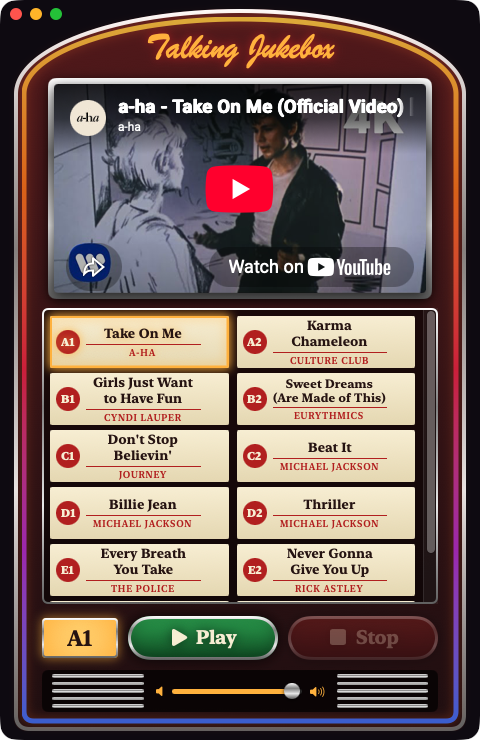
Pick a title strip and press Play or the space bar. It says “Now, playing Take On Me.” and the music video starts when it finishes speaking.
A classic jukebox
An arched cabinet with a neon tube, a chrome frame and cream title strips, loaded with 12 hits from the ’80s.
Keyboard and volume
Arrow keys move between songs, the space bar is Play and Stop, and the slider at the bottom sets the volume of both the voice and the video.
How to install
Talking Jukebox comes as a disk image (.dmg), the standard way to install a Mac app from the web.
- Download the DMG. Click Download for Mac;
Talking-Jukebox-1.0.dmgis saved to your Downloads folder. - Open the DMG. Double-click
Talking-Jukebox-1.0.dmgin Downloads (or click it in your browser’s download list). A Talking Jukebox window like the one shown here opens. - Drag it to Applications. Follow the arrow and drag the Talking Jukebox icon onto the Applications folder. This copies the app to your Mac.
- Eject the disk. Click ⏏ next to Talking Jukebox in the Finder sidebar (or drag the disk icon on the desktop to the Trash). You can then delete the
.dmgfrom Downloads. - Launch the app. Double-click Talking Jukebox in your Applications folder. The first time, macOS asks “Talking Jukebox” is an app downloaded from the Internet. Are you sure you want to open it? and notes that Apple checked it for malicious software. Click Open.
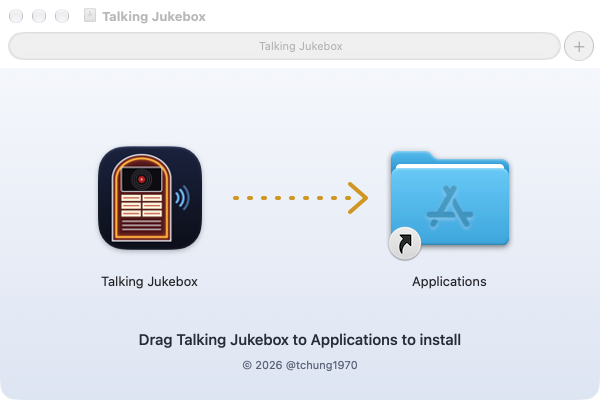
Note: run the app from Applications, not from inside the disk image — ejecting the disk takes the app with it. To uninstall, drag Talking Jukebox from Applications to the Trash.
Signed with my Apple Developer ID
Safe to open — Apple has checked it
Talking Jukebox is distributed outside the Mac App Store, so it carries both of Apple’s credentials for that.
- Apple Developer ID signature — signed with the “Developer ID Application: Thomas CHUNG (7FVXX299HB)” certificate, which Apple issues only to members of the Apple Developer Program. The signature proves the app comes from me and hasn’t been changed since I built it.
- Apple notarization — Apple scanned this exact build for malware and issued a notarization ticket. The ticket is stapled to both the app and the disk image, so macOS can verify it even offline.
- Hardened Runtime — macOS’s stricter app-security mode, required for notarization.
- Nothing hidden — no account, and the app itself shows no ads and does no tracking. It connects to the internet only to play the music videos through YouTube’s official player, so YouTube’s own terms and any ads it shows apply there. No videos are saved to your Mac.
To check for yourself, run this in Terminal after installing:
$ codesign -dv --verbose=2 "/Applications/Talking Jukebox.app" 2>&1 | grep -E "Authority|Team|Notarization"
Authority=Developer ID Application: Thomas CHUNG (7FVXX299HB)
Authority=Developer ID Certification Authority
Authority=Apple Root CA
Notarization Ticket=stapled
TeamIdentifier=7FVXX299HB

$ spctl -a -vv "/Applications/Talking Jukebox.app"
/Applications/Talking Jukebox.app: accepted
source=Notarized Developer ID
origin=Developer ID Application: Thomas CHUNG (7FVXX299HB)
It has two siblings: Talking Clock, a Mac clock that speaks the time, and Talking Calendar, a Mac calendar that speaks the date.